AI alt text generator
AI alt text generator. Start with your image.
Upload an image, tell us where it will appear and get an English description you can edit. The useful part happens before publishing: check what the AI saw, keep what matters and remove what it guessed.
Upload a JPEG, PNG, WebP or AVIF image in the workspace. Sign in for 5 trial AI descriptions, or use Pro for 200 descriptions per month.
The interactive upload controls open when JavaScript is available. Sign in to use AI descriptions.
How to generate alt text from an image
Start with the file you intend to publish. Upload a JPEG, PNG, WebP or AVIF image in the workspace above, then sign in to use the AI generator. A free account has 5 descriptions to try. You can also switch to a page audit if the image is already on a public website.
Add a short note in the page context field. For a shop, that might be the product name and the view shown. For an article, explain what the image is meant to illustrate. Choose Suggest alt text on the image you want to describe. Generation happens for that image when you ask for it; uploading a batch does not spend credits on every file.
Read the suggestion beside the image. Check the subject, colors and any text the model claims to see. Choose Use this text when it is useful, then make any final edits in the alt text field. Discarding a suggestion leaves your existing description in place. For a catalog photo, compare it with the product record; for an article, read it beside the paragraph the image supports.
When the descriptions are ready, export your selected images and the CSV mapping. You can use the mapping to apply alt text in WordPress or another CMS. If the files are already the right size, focus on the descriptions first; changing a filename or format is a separate publishing choice.
The same photograph can need different alt text
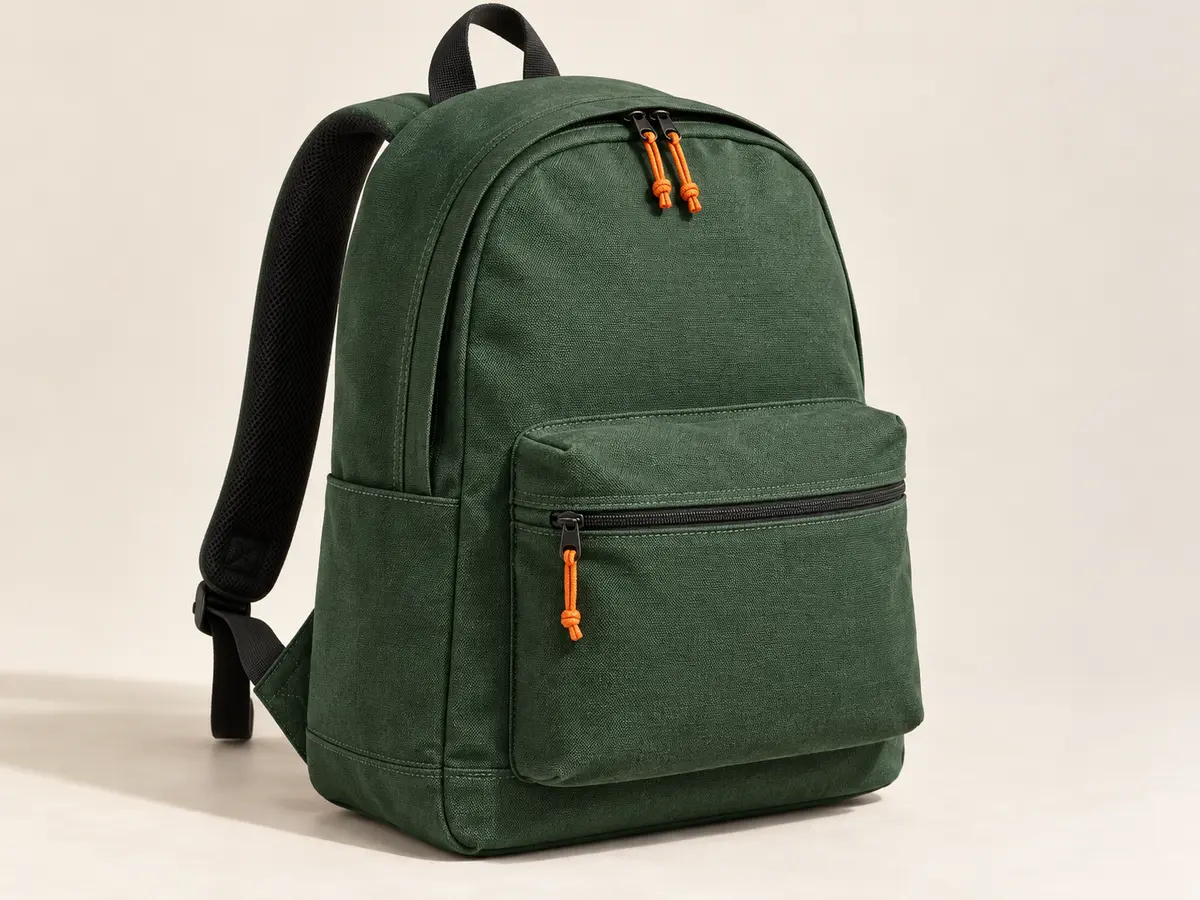
The backpack above has visible details we can describe: green fabric, orange zipper pulls and a front pocket. The picture does not tell us its capacity, price, waterproof rating or where it was made. Those details need reliable product information. A confident sentence is still wrong if it invents a feature.
Compare the descriptions below. Each fits a different page. They are editorial examples, written to show how context changes the job of an image description. They are not a claim that an AI system always returns these exact words.
| Where the image appears | A suitable description | Reason |
|---|---|---|
| Product page, main photograph | Forest-green backpack with orange zipper pulls and a front zip pocket | Names the item and visible distinguishing details. |
| Article about zipper pulls | Orange cord pulls on the main and front-pocket zippers of a green backpack | Emphasizes the detail the article discusses. |
| A purely decorative backdrop | Empty alt attribute: alt="" | Appropriate only if the image adds no information or function. |
A short context note is more useful than a list of target keywords. Try 'Product page for a green canvas backpack; this is the front view.' Avoid instructions such as 'include best backpack, cheap backpack, buy backpack online.' They push a description toward advertising and away from the image's purpose.
What to keep when you edit an AI suggestion
Keep the information a person would miss without seeing the image. Start with the subject, then add the visible detail that matters on this page. A product gallery might need a rear view described differently from a close-up of its clasp. A recipe photograph might need the finished dish, rather than every plate and utensil in the background.
Remove decorative language that does no work. 'A stunning and beautiful premium green backpack elegantly displayed' takes longer to hear without explaining more. 'Green backpack with orange zipper pulls' gives the reader a concrete picture. Use the same editing test for descriptions you write yourself.
Read numbers, labels and small text yourself. If a diagram contains data, put the explanation or table in the page content, where everyone can use it. A short alt attribute should not carry an entire report. W3C's guidance on informative images explains how the text alternative depends on what the image communicates.
For an image used as a link or button, consider its action or destination. A magnifying-glass icon that submits a search needs an accessible name for that action; a description of its shape may not help. Check W3C's functional image examples before treating interface icons like photographs.
5 descriptions to try, or 200 per month with Pro
| Allowance | Free account | Pro |
|---|---|---|
| AI descriptions | 5 total trial descriptions | 200 per calendar month |
| Language | English | English |
| Manual alt text editing | Included; no AI credits used | Included; no AI credits used |
| Images in one export | Up to 3 | Up to 20 |
| Active saved projects | 1 | 20 |
| Price | $0 | $4.99 per month |
The free AI allowance is a trial total, not a monthly refill. Pro resets on the first of each calendar month at 00:00 UTC, including for existing lifetime members. Unused Pro descriptions do not carry into the following month. The workspace shows your remaining allowance before you request a description.
A successful new suggestion uses one credit even if you decide not to keep it. Failed provider requests do not spend a credit. Requesting the same normalized image with the same context on the same account within 30 days reuses the saved result without another credit. Changing the context can produce a new request, so finish the context note before pressing the button.
You can upload up to 20 non-animated files in a batch, with a limit of 8 MB and 24 megapixels per image. Upload limits, export limits and AI credits are separate. There is no automatic 'describe every image' action in this release. See the plan comparison for the complete product limits.
From generated description to a real alt attribute
An alt description belongs to the image element in the page. It is not a field that yaSEO embeds inside a WebP or AVIF file. The ZIP contains the optimized images and a CSV mapping; the CMS still needs to receive the descriptions. Keep those two pieces together when you hand files to an editor or developer. The WordPress importer applies reviewed descriptions to new media attachments; the HTML export puts them in ready-to-copy image markup.
In WordPress, open the image's Alternative Text field in the Media Library or select the image block in the page editor. Paste the reviewed description, save and inspect the published page. A library edit may not update the text stored in an existing block. Our WordPress image SEO workflow covers this distinction and the checks after an upload.
For a plain HTML page, a finished image element could look like the example below. The dimensions should match the file's proportions. The filename and alt text have different jobs: the filename identifies the asset, while the description explains the image to someone using the page.
<img src="/images/green-backpack-front.webp"
     alt="Forest-green backpack with orange zipper pulls and a front zip pocket"
     width="1200" height="900">
What happens to an image when you ask AI to describe it
The generation request sends a resized copy of the selected image, with embedded metadata removed, and the page context you supplied to Google's Gemini service. An upload or URL audit on its own does not start that request. Use images you are comfortable sending for processing, and keep confidential information out of the context field.
Uploaded originals are temporary. yaSEO keeps them in server memory for up to 15 minutes; a restart or capacity limit can remove them earlier. A saved project keeps the report, thumbnails, your edits and export records, rather than becoming permanent storage for the original upload. Keep the originals in your own files. The privacy policy explains the broader service handling.
AI can misidentify objects, miss important text or describe an image too generally. Treat the output as a draft. Review is especially important for diagrams, product variants and images whose purpose changes from page to page. A generator can help you start writing; it cannot certify a page's accessibility or promise search rankings.
Already have a website full of images? Start with an audit
You do not need to regenerate every existing description. Run the image SEO checker on an important page and review the results. Keep descriptions that already explain their images. Fix missing attributes, unclear wording and product variants that all share a generic label.
The page audit reads HTML rather than rendering a browser session. It inspects up to 40 image elements and tries to measure the first 20. Images loaded only by JavaScript, CSS backgrounds or content behind a login may need manual review. Use the audit one page at a time, then inspect dynamic galleries in your browser.
Work through a small group, publish the edits and audit that page again. This last step catches the common gap between a corrected spreadsheet and an unchanged website. For more detailed wording examples, use the product image alt text guide.
Common questions
Is this a free AI alt text generator?
A free account includes 5 successful descriptions to try. Auditing images, editing alt text manually and exporting up to 3 files per batch are also available free. Pro adds 200 AI descriptions each calendar month.
Can I generate alt text without signing in?
You can upload and audit images without an account. AI generation requires sign-in so the service can track your allowance and recover previously generated suggestions.
Can I generate alt text for WordPress or Shopify images?
Yes. Prepare English descriptions for either CMS. For WordPress, the yaSEO ZIP importer adds new Media Library images with reviewed alt text. For Shopify, use the exported files and CSV mapping to apply changes yourself. Existing pages and stores are not rewritten automatically.
Should I put SEO keywords into every alt description?
Use the words that accurately explain the image in context. Repeating a keyword list makes the description harder to use. Product names and visible attributes can fit naturally when they help identify the image.
Can I leave the alt text empty?
Yes, when an image is purely decorative in that page's context. Mark it as decorative in the workspace. An image with a meaningful function or information needs an appropriate text alternative.