Image format lab
WebP vs AVIF: compare the files, then choose the format.
We encoded a product photo, a still life and an interface screenshot with the same engine yaSEO uses. WebP produced fewer bytes at each tested quality number. That result is useful, but it is not an equal-quality verdict on two entire formats.
What we measured, and what the result means
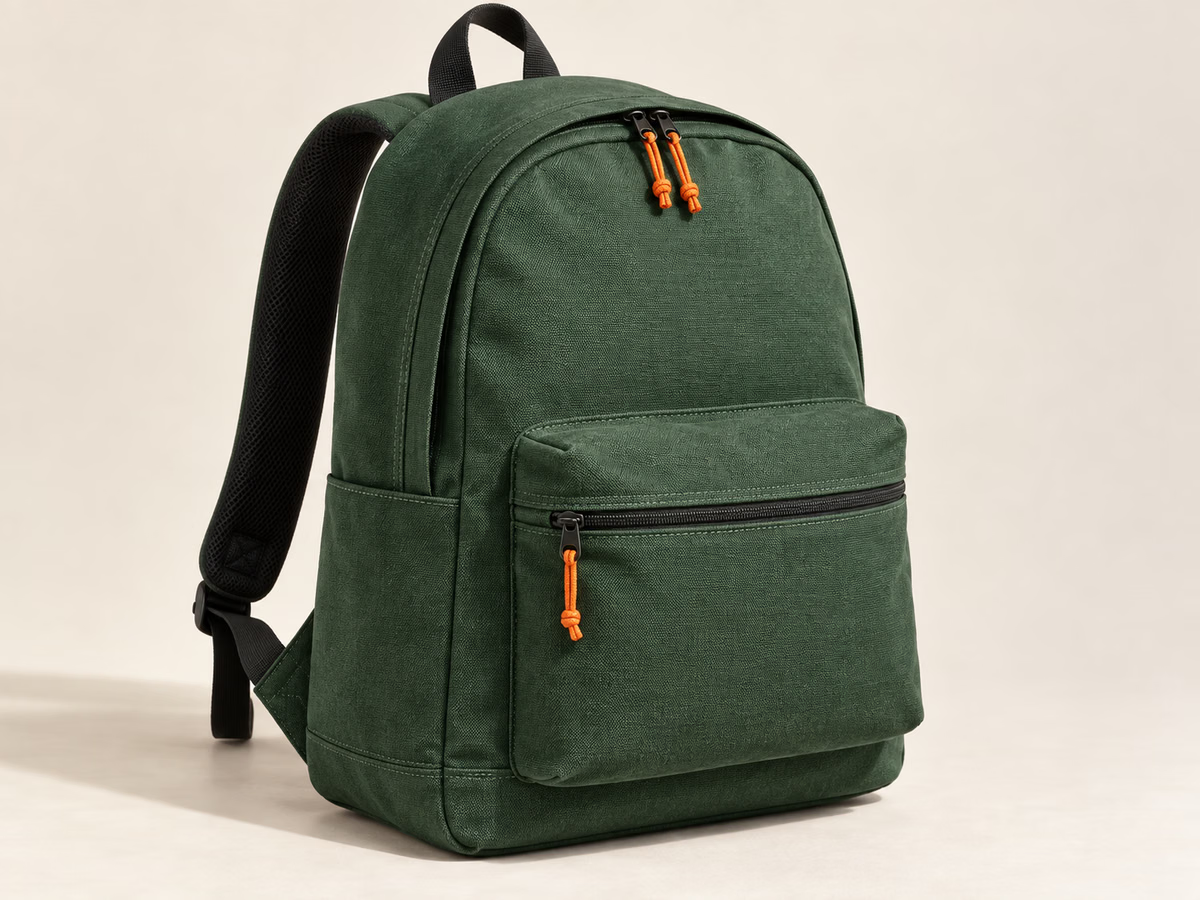
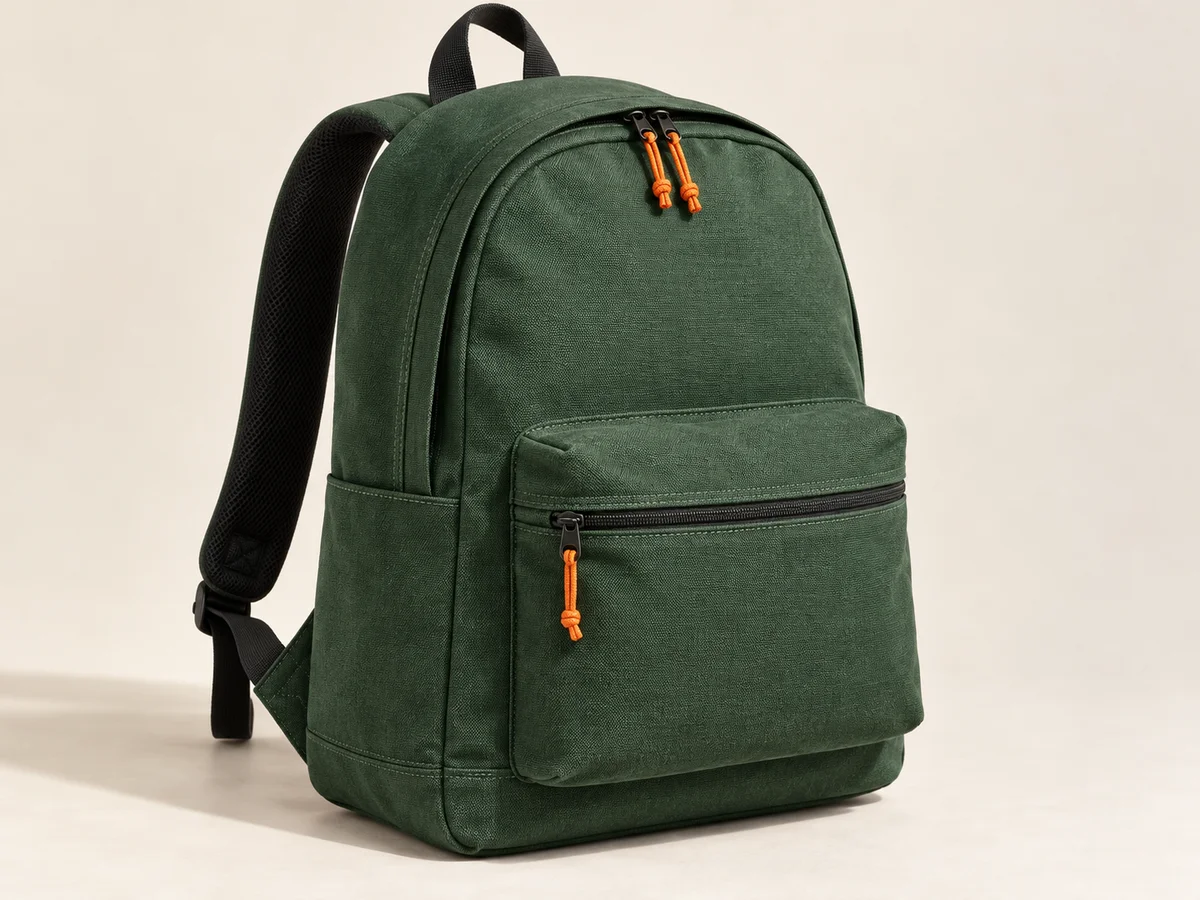
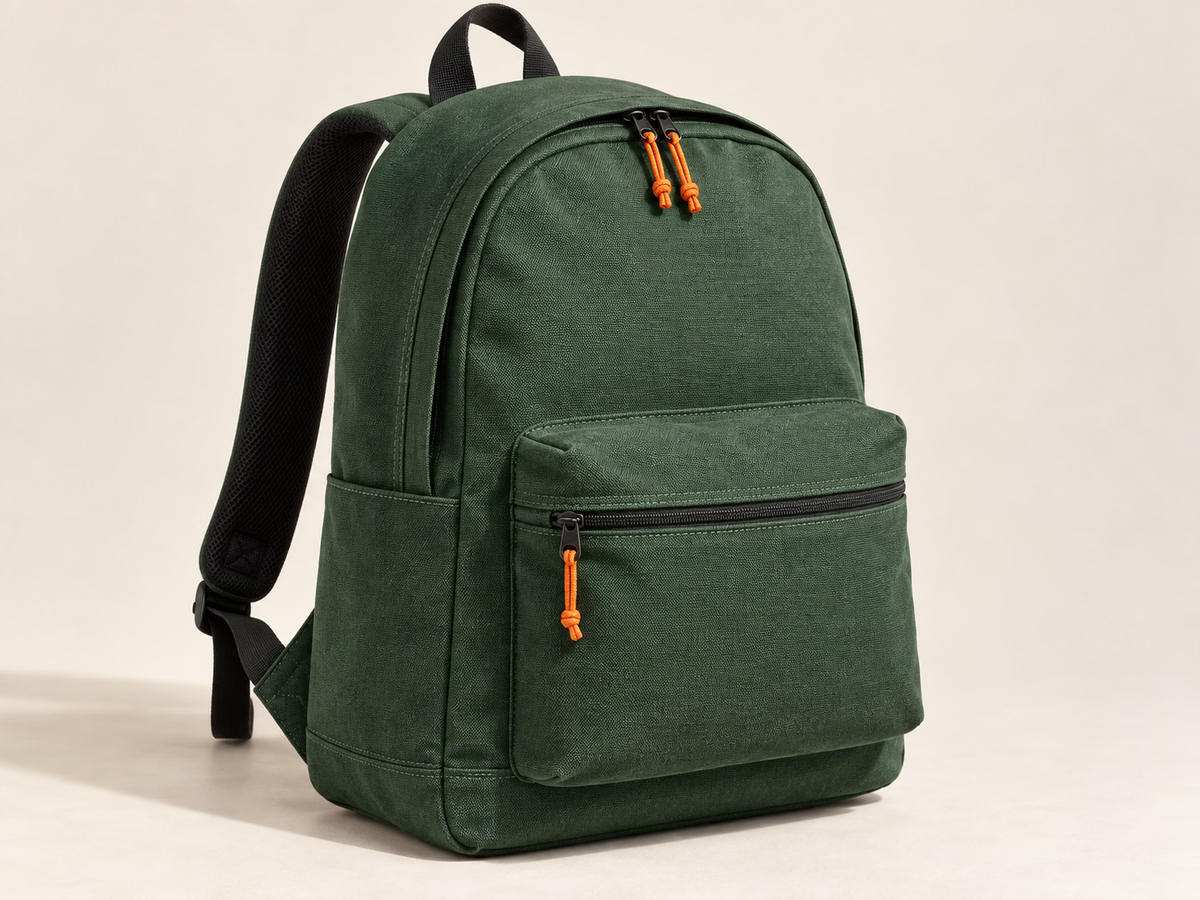
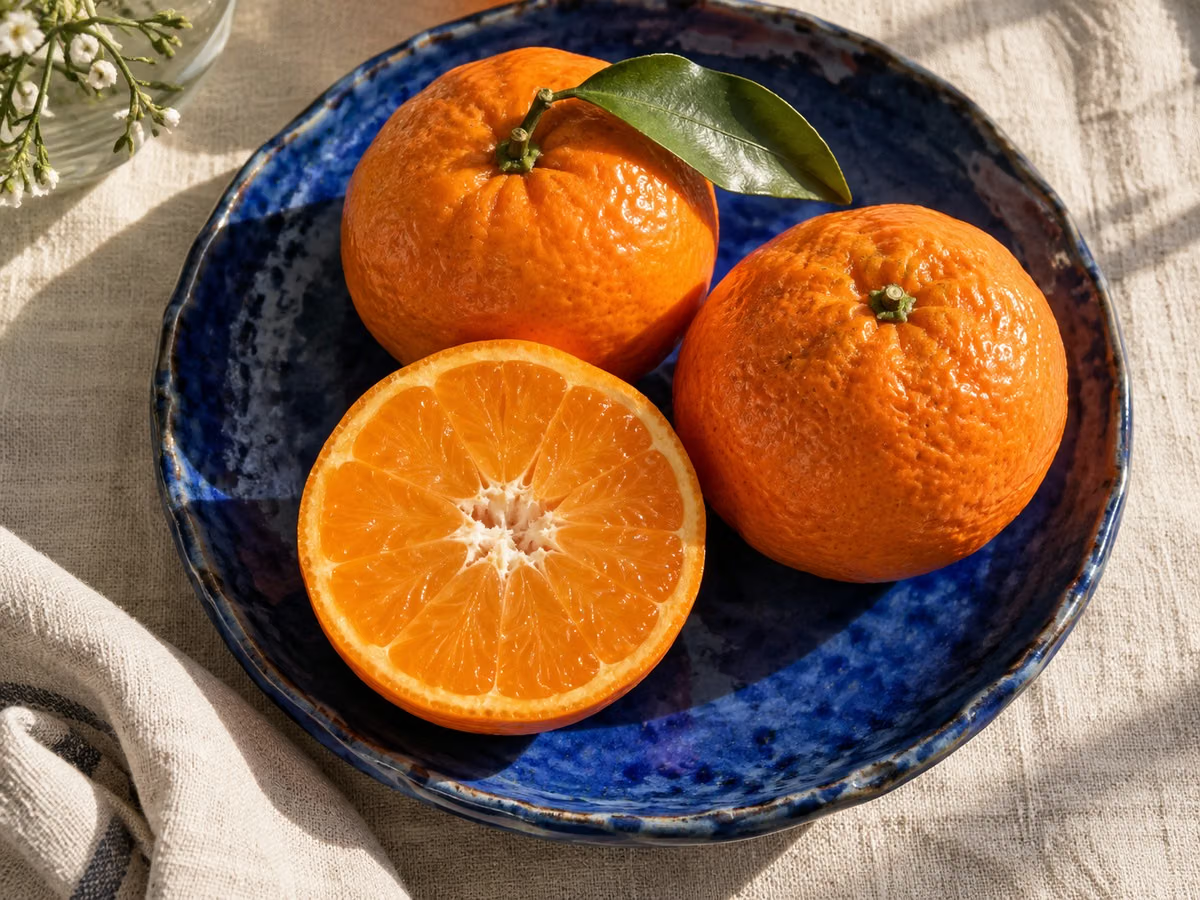
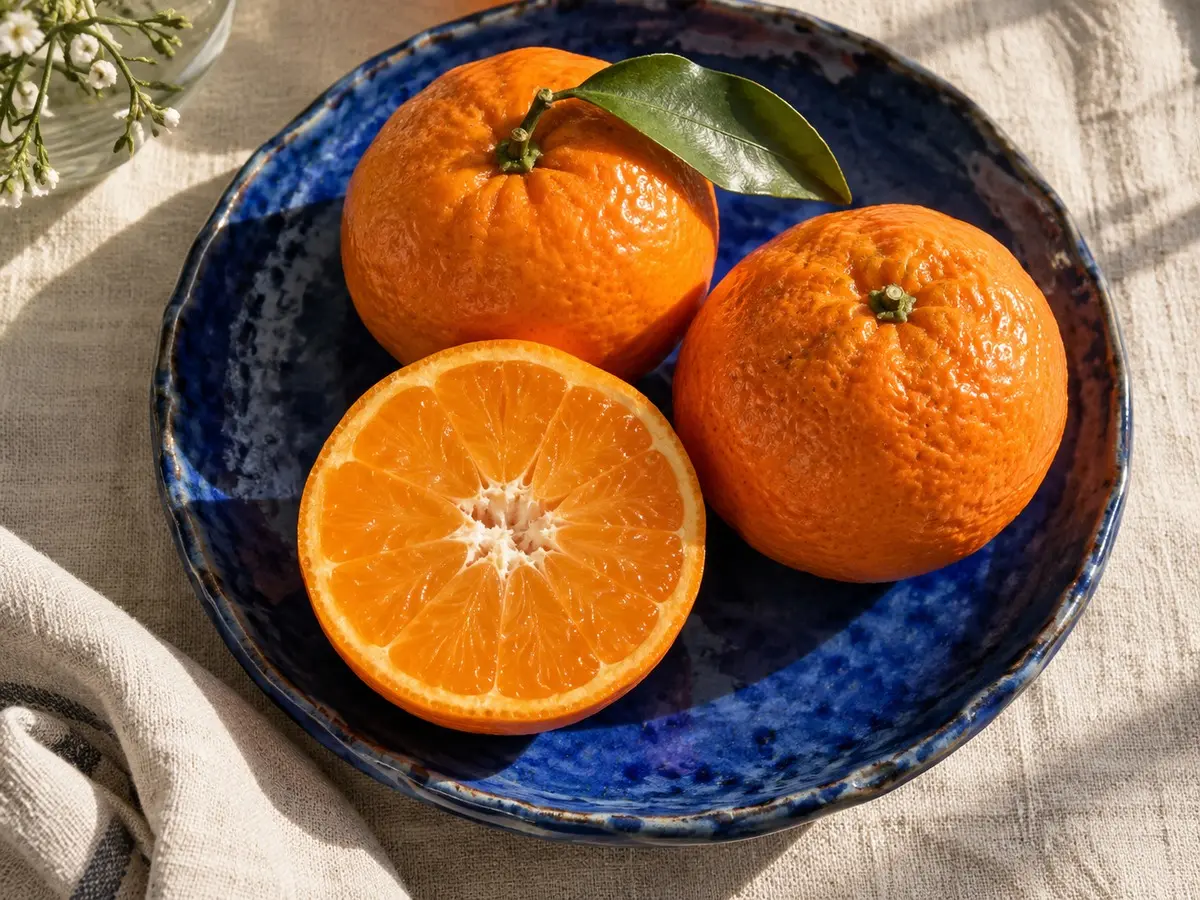
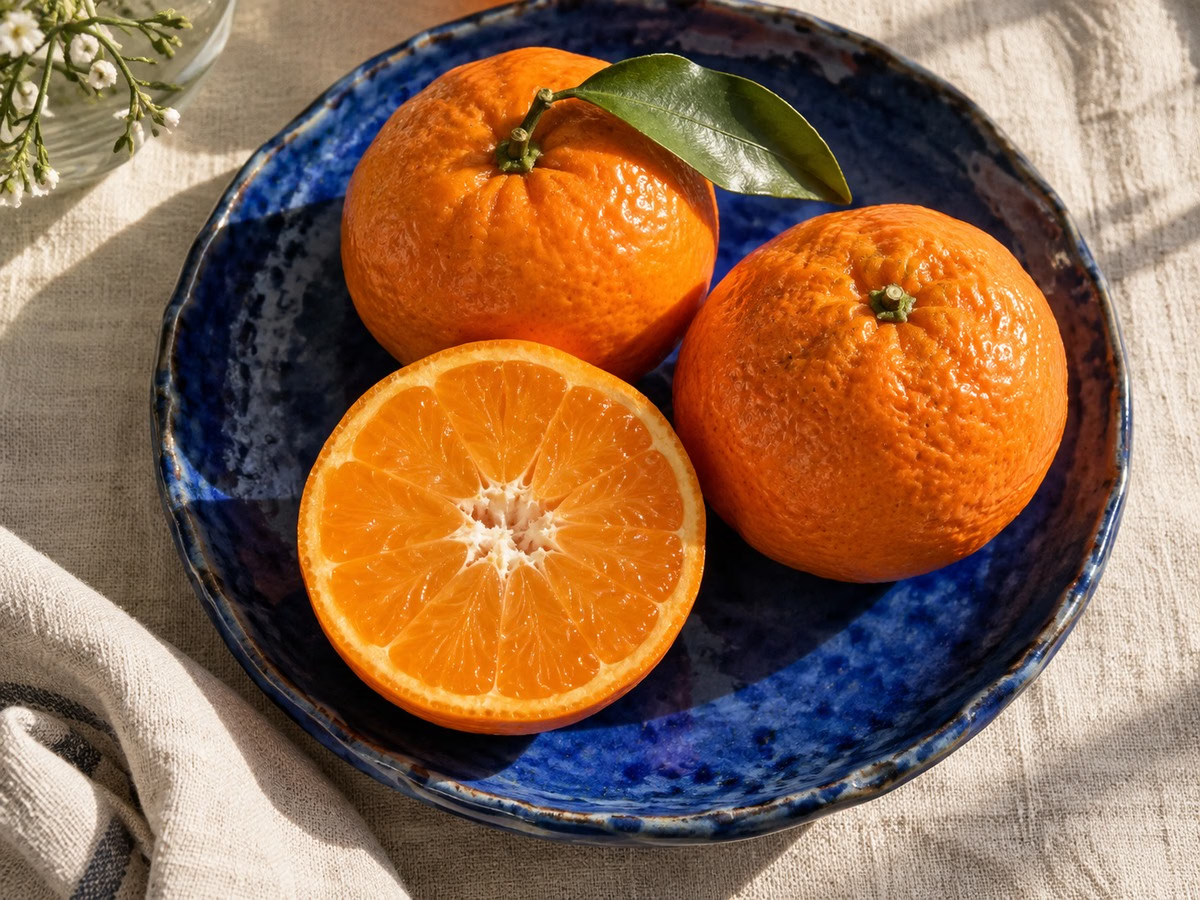
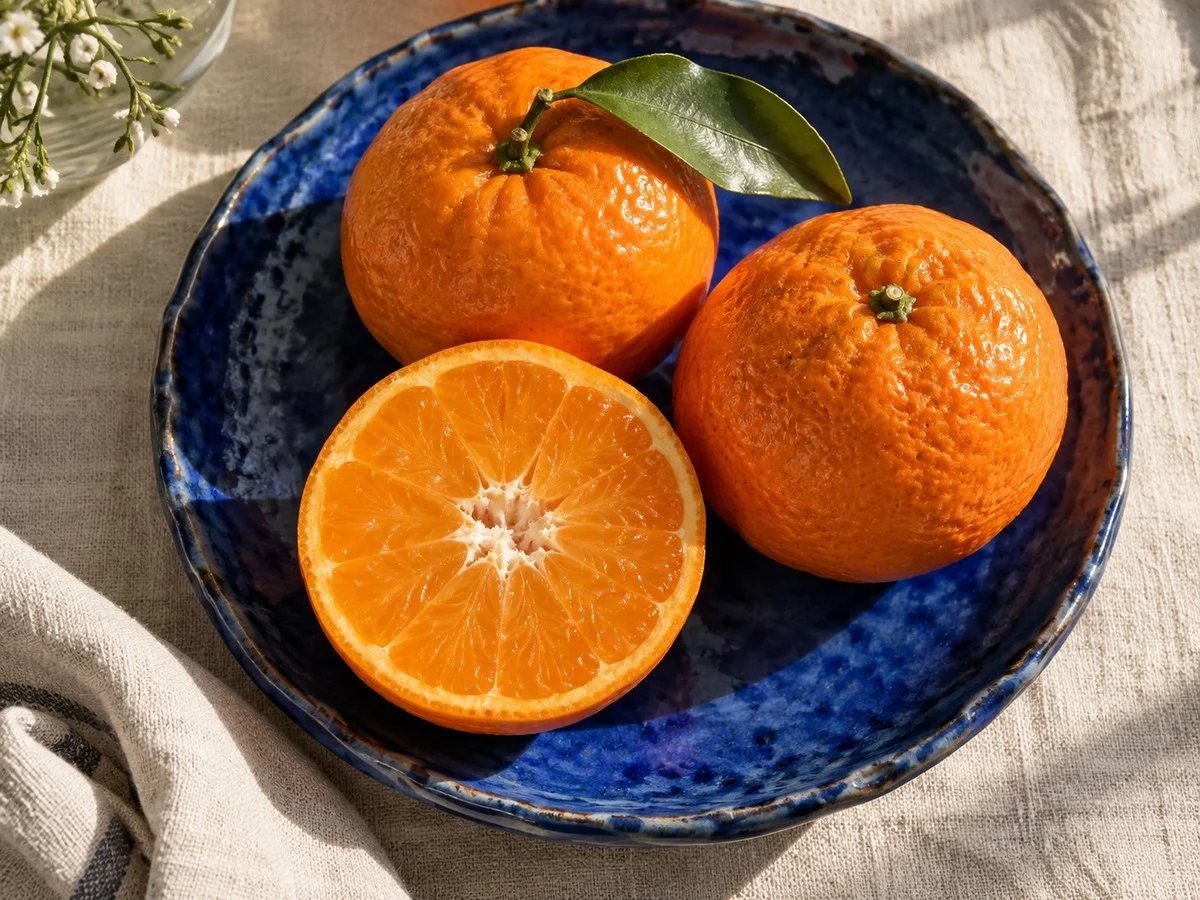
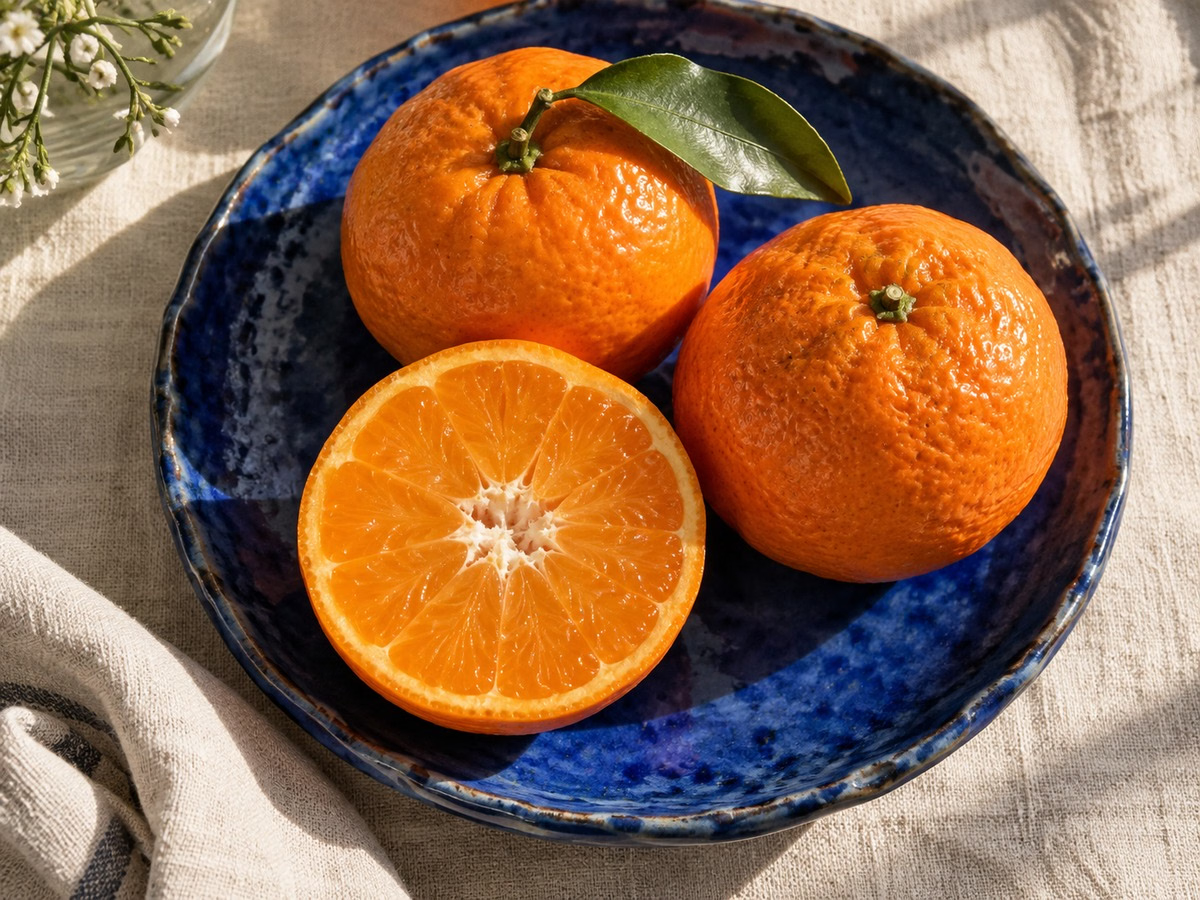
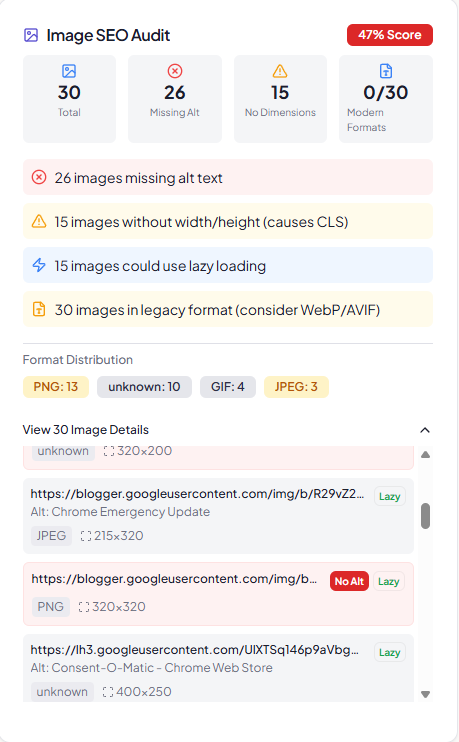
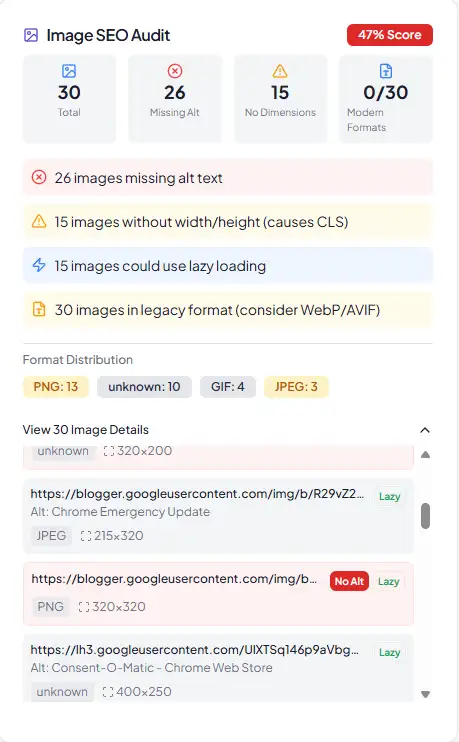
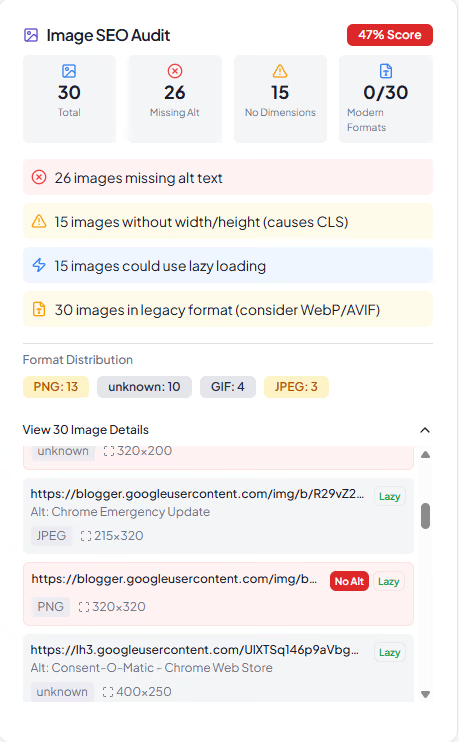
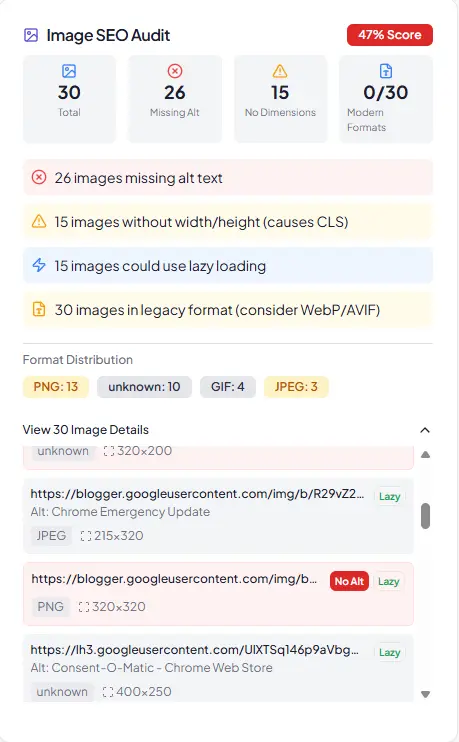
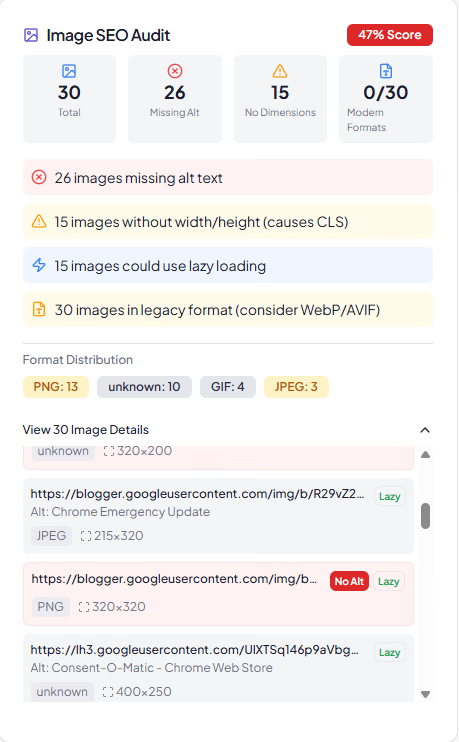
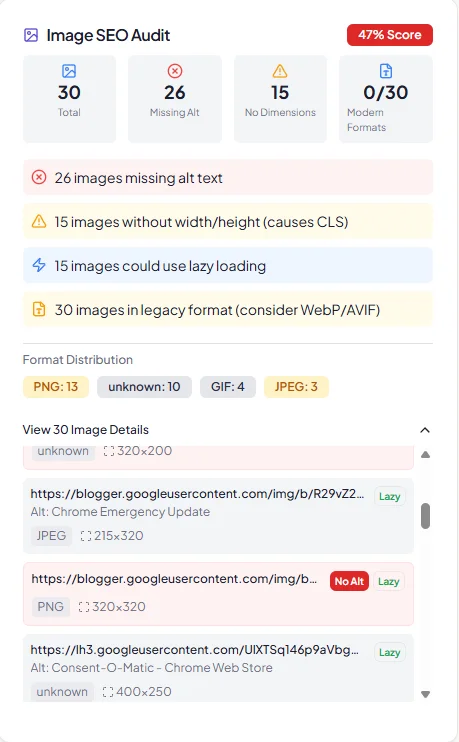
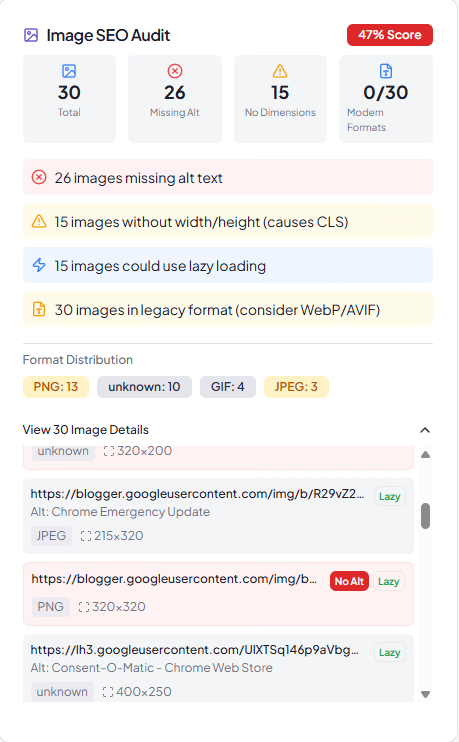
The test below uses three source files: a textured backpack photograph, the tangerine still life used on yaSEO's homepage and an earlier interface screenshot. We exported each at quality settings 60, 75 and 85 in WebP and AVIF. That makes 18 output files, all available to inspect or download.
At quality 75, the backpack was 91,800 bytes in WebP and 132,363 bytes in AVIF. The tangerines were 149,936 and 227,798 bytes respectively. The screenshot was 26,028 and 42,286 bytes. The output dimensions stayed the same as each source. WebP also produced fewer bytes at the other two tested quality numbers.
This answers a narrow, practical question: what does yaSEO's current exporter produce with these sources and settings? It does not establish which codec is smaller at matched visual quality. A quality value is an encoder setting, not a shared measurement scale. We would need a separate quality-matching study before claiming a general format winner.
All bars share the same byte scale. Quality settings are not visually matched. 1 kB = 1,000 bytes.
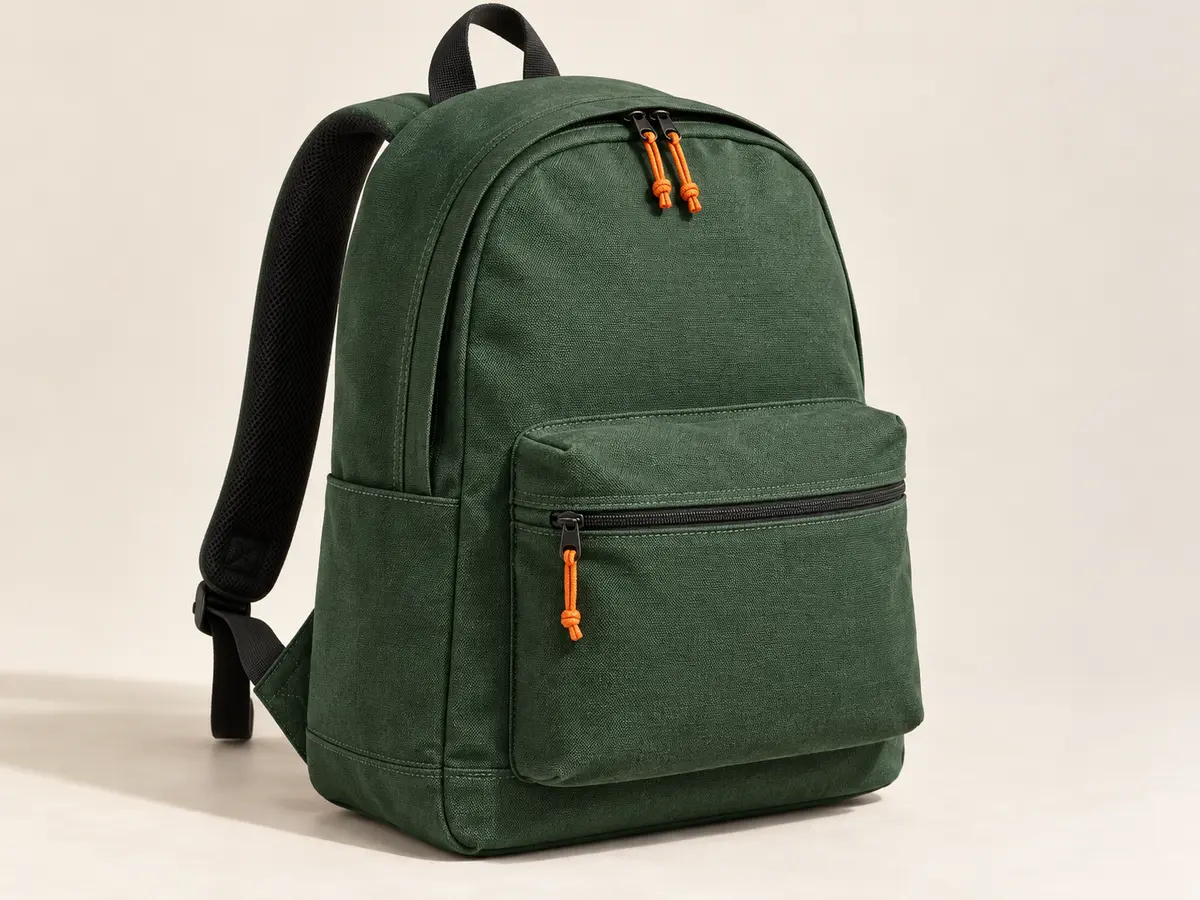
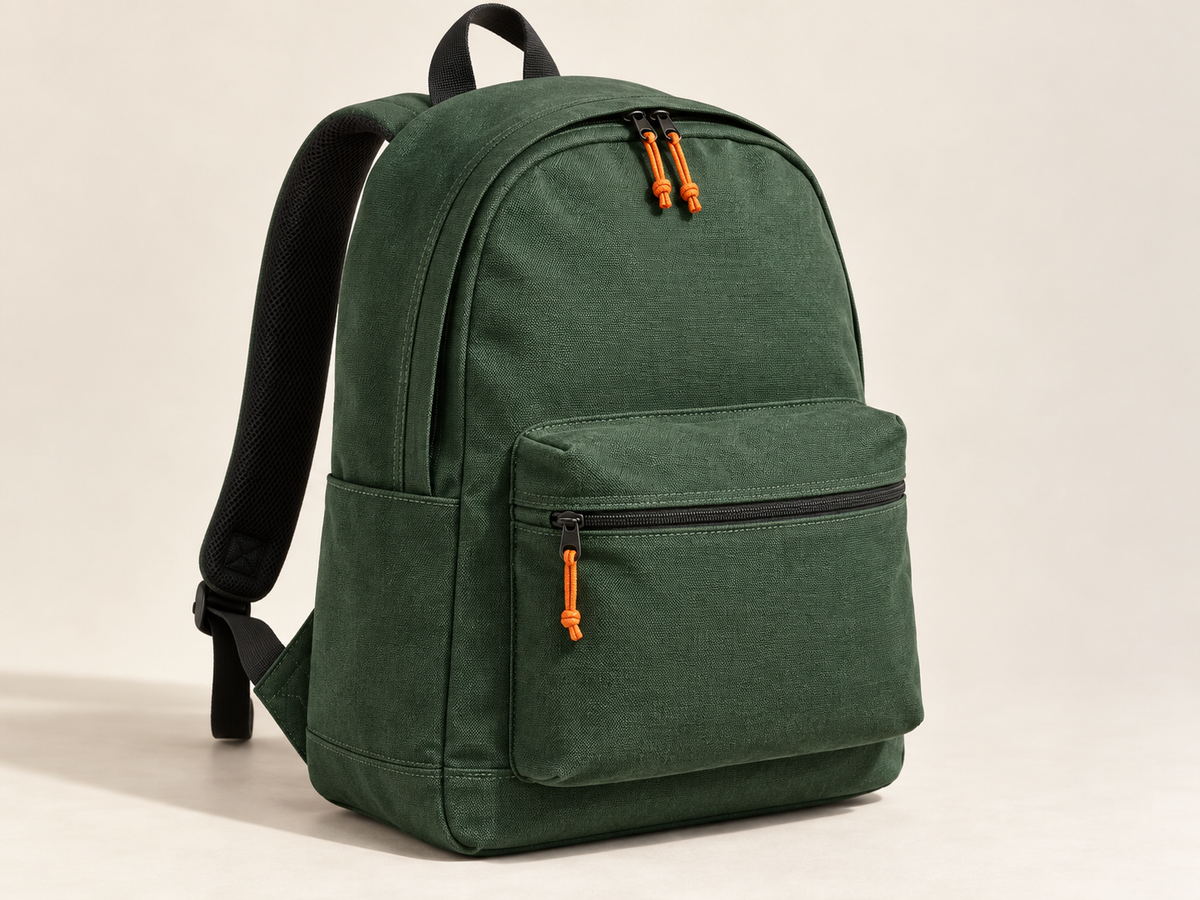
AI-generated fictional product, resized once to a 1200 by 900 PNG master. The preview may scale to fit your screen; use the file links to inspect native detail.
| Image | Source | Quality | WebP | AVIF |
|---|---|---|---|---|
| Textured product photo1200 × 900 | 1,865,340 B | 60 | 74,542 B | 82,239 B |
| Textured product photo1200 × 900 | 1,865,340 B | 75 | 91,800 B | 132,363 B |
| Textured product photo1200 × 900 | 1,865,340 B | 85 | 137,320 B | 171,906 B |
| Tangerine still life1200 × 900 | 363,835 B | 60 | 122,552 B | 147,366 B |
| Tangerine still life1200 × 900 | 363,835 B | 75 | 149,936 B | 227,798 B |
| Tangerine still life1200 × 900 | 363,835 B | 85 | 229,508 B | 282,149 B |
| Interface screenshot459 × 742 | 76,516 B | 60 | 23,026 B | 35,237 B |
| Interface screenshot459 × 742 | 76,516 B | 75 | 26,028 B | 42,286 B |
| Interface screenshot459 × 742 | 76,516 B | 85 | 34,172 B | 47,658 B |


A reproducible test with the production image encoder
We ran the test on September 12, 2026 using Sharp 0.35.4 and libvips 8.18.6. The script called the same optimizeImage function used by the yaSEO export endpoint. WebP effort was 3; AVIF effort was 2. We did not tune one format until it beat the other.
The fictional backpack image was generated for these guides and resized once to a 1200 by 900 PNG master before testing. The still life was already a 1200 by 900 JPEG. The screenshot was a 459 by 742 PNG. We kept those dimensions for every encoded output and did not enlarge the screenshot. Source hashes in the data file identify the exact inputs.
Each setting ran three times on the same development machine, sequentially, and the data includes the median encoding time. Those timings describe this run on this machine. They are not page-load timings, a server capacity benchmark or an estimate of how quickly every visitor will see an image. Shared hardware activity can affect them.
The CSV contains source bytes, dimensions, output format, quality, output bytes, median encode time and a SHA-256 source hash. The JSON adds the file paths and encoder details. You can repeat the test with the published files rather than relying on a percentage in a headline.
WebP: sharp(source).rotate()
  .resize({ width: sourceWidth, withoutEnlargement: true })
  .webp({ quality: 75, effort: 3 })

AVIF: sharp(source).rotate()
  .resize({ width: sourceWidth, withoutEnlargement: true })
  .avif({ quality: 75, effort: 2 })
See the Sharp output documentation for what the format settings control. The measured files use the production limits and encoding choices; the code above shows the relevant conversion options.
Why quality 75 in WebP is not quality 75 in AVIF
Moving a quality control changes how an encoder trades visible detail for file size. Two encoders do not have to make the same trade at the same number. That is why a table headed only 'WebP 75 versus AVIF 75' can look decisive while leaving the most important question unanswered: which result looks acceptable for this image?
Start with an output you would be willing to publish. Inspect it at the actual display size, then look closely at the details that matter. Adjust the other format until it reaches a similarly acceptable result. Only then compare bytes for that decision. This is a practical visual review, and it still involves judgment; it should not be presented as a formal perceptual study.
Effort is another input. An encoder can spend more time searching for a smaller representation. The current yaSEO settings favor a responsive editing session, and the same choices apply to the results here. A different library version, effort setting or image can change the outcome. Record the encoder version and settings beside the byte count.
Avoid treating a single compression percentage as the product's typical result. The backpack starts as a large PNG master, so converting it to a lossy format removes many bytes. The already-compressed JPEG still life has a different starting point. Neither percentage describes an entire image library.
Look for the detail the image is supposed to preserve
| Source | Inspect closely | Check at normal display size |
|---|---|---|
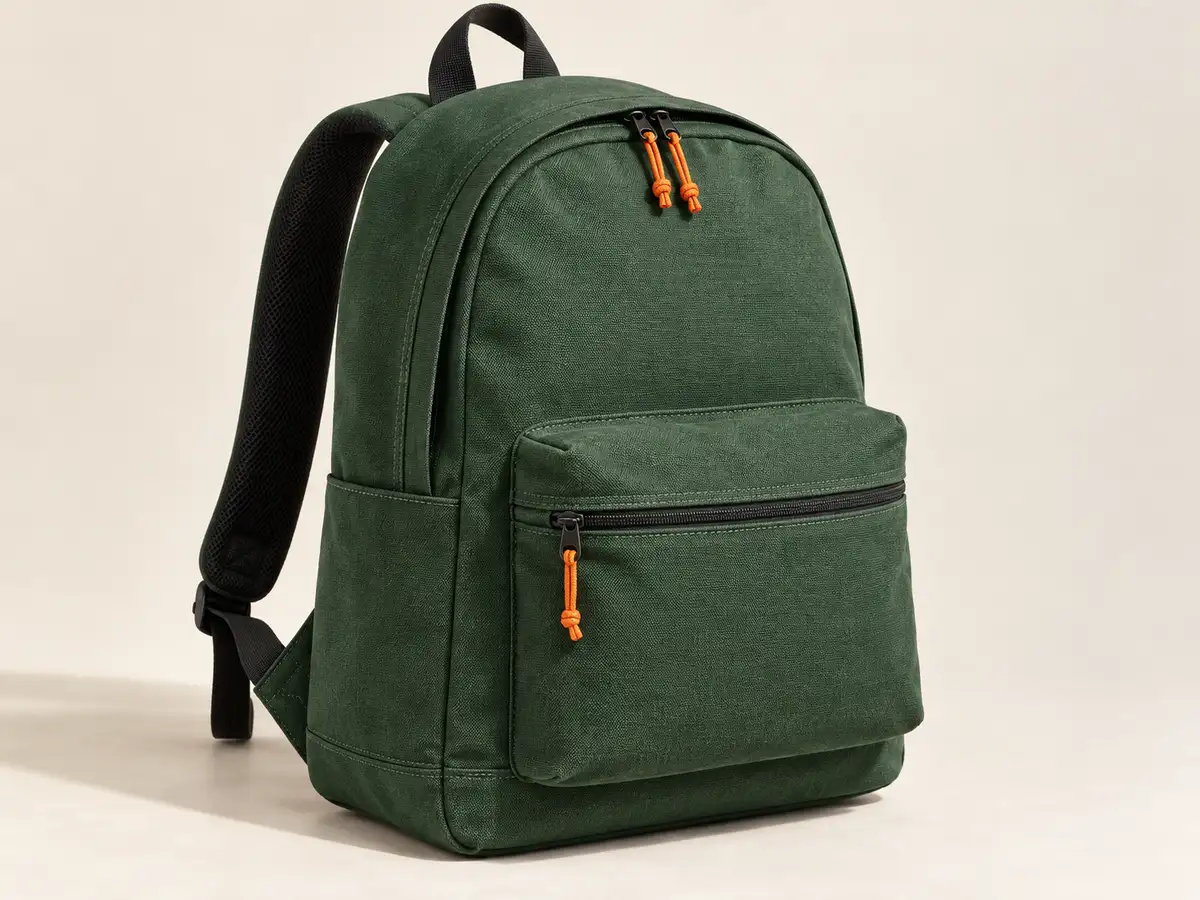
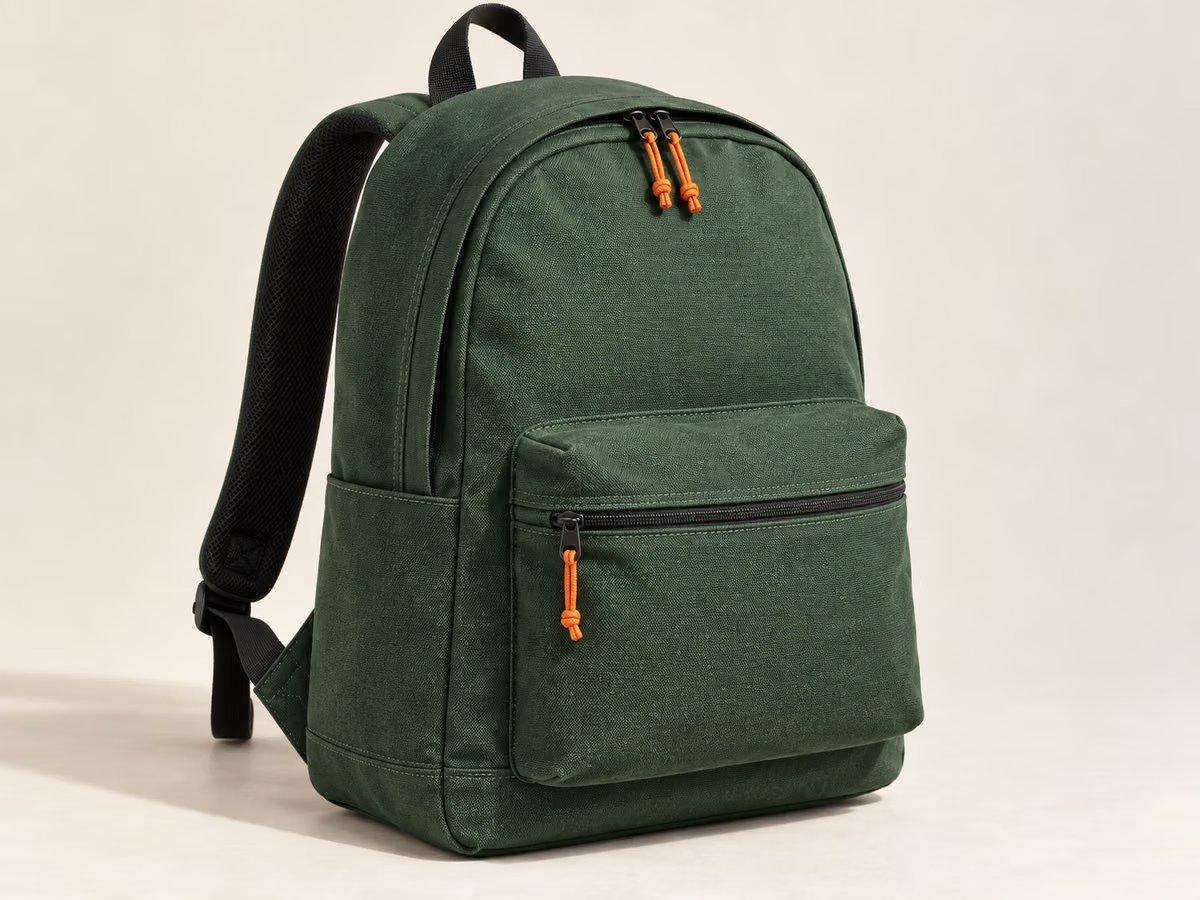
| Backpack photograph | Fabric weave, stitching, zipper cords and the edge against the pale background | Does the material still read clearly as textured fabric? |
| Tangerine still life | Fruit skin, leaf edges, cut segments and the ceramic plate | Do small details remain useful without drawing attention to artifacts? |
| Interface screenshot | Small lettering, colored icons and thin borders | Can someone comfortably read the interface at its intended size? |
Use the file links to compare at native size. A browser may scale an image to fit the page, so a side-by-side preview alone is not a complete quality check. The interactive example is useful for finding differences; opening the files lets you inspect the same area without the page layout deciding the scale.
Text is a demanding case. An image that looks fine as a small illustration can become hard to read when a visitor needs the text inside it. If the screenshot is essential to a tutorial, the smallest file is not necessarily the right file. Consider whether the text should also appear as real page content.
For transparent logos, diagrams or interface icons, also test whether a vector or a lossless asset suits the job. Our three fixtures do not cover transparency, animation, HDR, skin tones or every kind of gradient. The results should not be stretched into claims about those categories.
Fix unnecessary pixels before arguing about file formats
A product card and a full-screen product zoom have different requirements. If the card displays an image at 400 CSS pixels wide, a 4000-pixel file may carry detail that the card never shows. A high-density display may need a larger source than the CSS width, but the right size still depends on the actual layout and use.
Test a sensible width, keep the aspect ratio and compare the result at the intended display size. In yaSEO, export widths range from 100 to 2400 pixels and small images are not enlarged. If you need a larger master for a zoom view, keep it in your own storage and use a publishing workflow sized for that requirement.
A responsive page can offer several sizes through srcset and tell the browser about the layout through sizes. The browser then chooses an appropriate candidate. The yaSEO HTML export supplies real size variants and srcset markup, which you can adapt to your layout. Importing a package does not rewrite existing CMS pages. WordPress may generate its own image sizes after upload, which is why the published page needs a separate check.
The experiment on this page deliberately keeps dimensions fixed. That helps isolate the format and quality choices within the test. In real publishing, resizing can be a larger decision than switching codecs, and it deserves its own comparison.
Choose a format your publishing path can actually serve
An image can open on your laptop and still fail somewhere in the publishing chain. The CMS may reject its type, the hosting image library may lack an encoder, a plugin may skip a conversion or an email client may handle it differently. Verify the environments that matter for your site instead of assuming browser support settles every compatibility question.
For WordPress, support involves both the WordPress version and the server's image-processing libraries. Read the WordPress image workflow before replacing a large batch. Try one representative upload, confirm the generated sizes and inspect the published page. A successful file upload is only the first check.
If you maintain the markup yourself, picture can offer an AVIF source with a WebP fallback. Use the correct MIME type and an img element with a real src. Keep the alt description on that image element. The example below illustrates the structure; replace its dimensions and paths with your actual exported files.
<picture>
  <source srcset="/images/backpack.avif" type="image/avif">
  <img src="/images/backpack.webp"
       alt="Green backpack with orange zipper pulls"
       width="1200" height="900">
</picture>
WebP versus AVIF is only one part of image SEO
Both WebP and AVIF are supported image formats for Google Search. Changing the extension is not a ranking strategy by itself. The image still needs a useful page, an accessible URL and an appropriate text alternative. Google's image documentation describes the wider requirements.
Fewer bytes can reduce the amount of image data a visitor downloads, but the timing of the request also matters. A smaller hero image that starts loading late can still arrive late. Identify the page's Largest Contentful Paint element before changing loading behavior. The web.dev LCP guide explains why an important image should not be delayed by lazy loading.
Measure the page after publishing. Record which image URL the browser chose, its transfer size and whether the visible result still looks right. Keep file-size results separate from page-speed results and search performance. This article measures encoded bytes; it does not claim a reduction in load time or an increase in rankings.
Run the decision on your own source files
Choose a small set that represents your site, including the files you find difficult to compress. Keep the originals. Export both formats at a sensible size and start with moderate quality settings. Compare the important details before comparing the final bytes.
Write down the setting you would actually publish for each image. You may end with WebP for one category and AVIF for another, or keep a source format for a case that needs it. A screenshot with tiny labels may deserve a different setting from a full-width photograph.
Use the yaSEO image workspace to compare your files, and keep the CSV with the exported assets. If you are also comparing services, the TinyPNG comparison uses these same source files and clearly identifies its different output settings.
Common questions
Is AVIF always smaller than WebP?
No. File size depends on the source, dimensions, encoder and settings. In this test, WebP was smaller at all three tested quality numbers. That does not prove a general advantage at matched visual quality.
Which is better for SEO, WebP or AVIF?
Google supports both. Choose a file your site can serve reliably, with acceptable quality and sensible size. Also review the page context, alt text and image markup.
Can I compare the same quality number across both formats?
You can measure what each setting produces, as this test does. You cannot assume the number represents identical visual quality. Compare the output before drawing a quality-based conclusion.
Should I convert every JPEG to AVIF?
Test representative files first. A format change can alter visible quality, metadata and compatibility. Keep originals and verify the published result before changing an entire library.
Can I download the test images and results?
Yes. The lab includes source and output file links, plus CSV and JSON measurements. The backpack is a fictional AI-generated sample; the other sources are existing yaSEO assets.